


PDF Reader: Viewer, PDF Editor
3.2128.00 Reviews
App Specs
- Version
- 1.1.0
- Updated On
- License
- Free
- Downloads
- 1,000,000+
- Developer
- Stackwise Studio
- Categories
- Tools
- Platform
- Android
Screenshots
 Analysis by AppCompare
Ever found yourself in a bind trying to open a PDF on your smartphone? Trust me, I've been there. That's when I stumbled upon PDF Reader: Viewer, PDF Editor, and let me tell you, it's been a game-changer. If you're juggling documents on the go, this app might just become your new best friend.
Making PDF Editing More Convenient on a Phone
What makes this app worth considering is the idea of handling a document where you already read it: on your phone. A PDF often arrives at an awkward moment, when you’re away from a computer and only need to check a detail, mark a passage, or prepare a file for someone else. PDF editing on a mobile device is most useful in these small, practical moments, rather than as a replacement for every part of a desktop office workflow.
That focus gives the app a clear place in the tools category. Stackwise Studio develops it as a free app, though in-app purchases range from $9.99 to $49.99 per item. It is rated for Everyone, and its current version is 1.1.0, with Android 8.0 as the minimum operating system requirement. Those details matter when deciding whether it fits an older phone or a household device: check the Android version before relying on it for a time-sensitive document.
Why editing in the reader matters
A separate PDF viewer is enough when all you want is to open a file and read it. The appeal here is having viewing and editing together, so a document can move from “I need to inspect this” to “I need to mark or sign this” without switching apps. That can make a modest task feel much less fiddly on a small screen.
The useful distinction is between quick document work and elaborate document production. On a phone, it is sensible to make a brief annotation or add a signature while a file is in front of you. It is less comfortable to restructure a long report or carefully revise dense text with touch controls. I’d treat this as a convenient companion for targeted changes, not assume that a mobile editor will feel like a full desktop publishing setup.
How the workflow fits everyday use
Imagine a form arriving while you’re commuting or waiting for an appointment. You can open the PDF, check the relevant section, and make a simple mark or signature on the same device rather than postponing the task until you reach a laptop. The real benefit is not that every document task becomes effortless; it’s that a short, clearly defined job can be completed at the moment you have the file and a few minutes to deal with it.
For a smoother phone-based workflow, I’d keep the task narrow: open the document, locate the page you need, make only the intended change, then review the page again before sharing or storing the result. This quick second look is especially worthwhile on a touchscreen, where a misplaced tap can be easy to miss. If the document is important, keep the original unchanged until you have checked the edited copy.
Worth Reading Before You Choose

EA SPORTS FC Mobile 26 Is a Bigger Football Game, but It Takes Time

Flipboard Shows What News Apps Must Do Beyond the Feed

Switching to Android Auto Means Rethinking Your Driving Routine

Google Calendar Makes a Crowded Week Easier to Manage

Ludo King Makes the Most of the Minutes Between Plans

Baby Panda World Brings Quick Play to Modern Phones, but Its Game Library Feels Busy
Reading and editing on a phone also works best when you think about the document’s destination. A short form that needs a signature is a natural fit; a contract with many clauses deserves slower review, preferably on a larger display. The phone is handy for access and small actions, while careful reading still benefits from time, space, and attention.
First Impressions
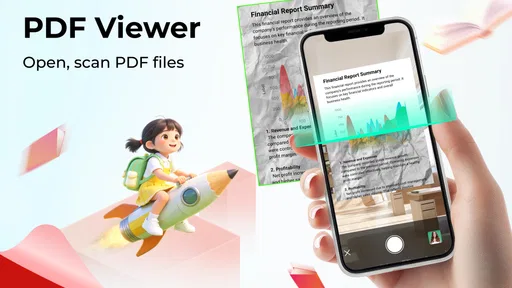
Jumping into PDF Reader: Viewer, PDF Editor is like slipping into a comfy pair of slippers—it's smooth and intuitive. Right from the get-go, the app's layout is clean and user-friendly. There's no clutter, just what you need when you need it. The home screen gives you quick access to your recent documents, making it super easy to pick up where you left off.
Features That Stand Out
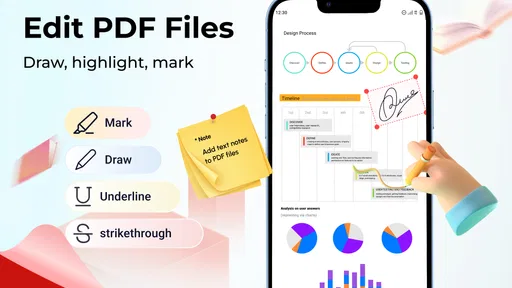
Now, let's talk features. This app isn't just about viewing PDFs. Sure, it handles that with ease, but it's the editing capabilities that really shine. You can annotate, highlight, and even sign documents right from your device. Honestly, it's like having a mini office in your pocket.
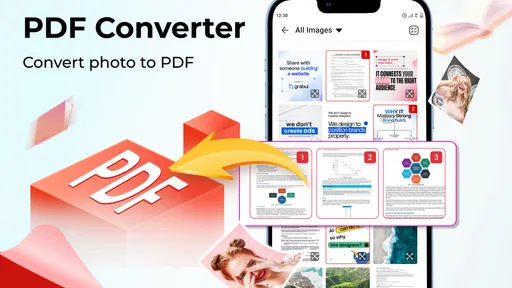
But wait, there's more! Need to convert a file? No problem. This app has got you covered with its built-in conversion tools. Whether it's turning a PDF into a Word doc or vice versa, it's all pretty seamless. And if you're worried about compatibility, rest easy. The app supports a wide range of file formats, so you won't run into any annoying "unsupported file" messages.
Choosing the right kind of PDF tool
Compared with a basic reader, an editor is a better fit when you regularly need to mark, sign, or otherwise work with documents rather than simply view them. Compared with a desktop PDF program, a phone app is easier to reach when you’re away from your desk, but the smaller screen and touch input make detailed changes less comfortable. I’d choose this app for quick, occasional document handling and use a computer when accuracy depends on examining many pages or making extensive revisions.
It also helps to decide what “editing” means for your particular file. Adding a highlight or signature is a focused task; changing the structure or wording of a complex document is a different level of work. Before starting, consider whether the recipient needs a marked-up copy, a signed copy, or a clean final version. That simple check can prevent the common mistake of sending the wrong kind of document after a rushed phone edit.
The app is free to install, which makes it easy to try as a reader before deciding whether its editing workflow suits you. At the same time, the listed in-app purchase range is worth keeping in mind if you’re comparing tools. I wouldn’t assume that every function you might want is included at no cost; check the purchase details in the app before building a regular workflow around a paid capability.
Getting Down to the Nitty-Gritty
Alright, let's dive into the nitty-gritty. One of the things I love about this app is its speed. Opening large files? No sweat. The app handles it without breaking a sweat, and that's something I appreciate when I'm in a hurry.
Another highlight is the search functionality. Need to find something in a massive document? Just type in your keyword, and the app will sift through the text to find it. It's like having a personal assistant that knows exactly where everything is.
Useful habits for handling documents on a phone
Search becomes especially helpful when you’re dealing with a long policy, set of instructions, or reference document and need to jump to a phrase instead of scrolling page by page. A practical tip is to search for a distinctive word from the section you remember, rather than a broad term likely to appear repeatedly. Once you land on a match, read the surrounding lines too; a result can point you to the right passage without replacing the context you need to understand it.
For annotations, I’d keep marks purposeful. Highlighting every other paragraph makes it harder to find the one point you actually wanted to remember. A few concise marks can turn a document into a useful reference, especially when you’re returning to it later on a phone. If you’re preparing a copy for someone else, review your marks from the reader’s perspective so your edits clarify the document instead of making it harder to follow.
Large files can still be a less pleasant experience on any phone simply because extensive documents demand more scrolling and close attention. Even if opening a file feels quick, that does not make a small display ideal for checking every detail. For a lengthy document, I’d use search to navigate, then move to a larger screen if the task calls for a careful full review.
Security and Privacy
In today's world, security is a big deal, especially when dealing with sensitive documents. Thankfully, this app takes privacy seriously. You can password-protect your files, ensuring that only you have access to them. It's a small feature, but it gives peace of mind, and that's priceless in my book.
Password protection is useful, but it should be treated as one part of sensible document handling rather than a reason to be careless. Choose a password you can manage safely, and think about whether the file needs to be stored or shared on that device at all. For highly sensitive paperwork, I’d take extra care before editing or sending it from a phone, especially if other people may use the device.
Usability and Experience
The user experience is top-notch. Everything feels intuitive, and the app guides you naturally through its features. Whether you're a tech guru or someone who just needs a reliable PDF tool, you'll find this app easy to use. And if you ever get stuck, there's a handy help section that covers just about everything.
Let's not forget about the aesthetics. The app has a modern look that's easy on the eyes. It's not overly flashy, but it doesn't need to be. It's functional and gets the job done without unnecessary frills.
Who is likely to get the most from it?
I can see this being useful for students who want to review reading material and mark a few important passages, or for people who receive forms and need to handle a straightforward signing task away from a computer. It also makes sense for anyone who keeps reference PDFs on a phone and wants to search for a detail instead of hunting through pages manually. In each case, the advantage is having several common document actions in one place.
I’d be more cautious if your main need is extensive text editing, precise page layout work, or a dependable setup for complex professional documents. A phone is convenient, but convenience and precision are not always the same thing. If your work depends on comparing pages side by side or making many careful changes, a desktop tool or a larger-screen device is a more comfortable choice.
The audience rating is Everyone, and the app has reached over one million installs. Its average rating is 3.2 from around 1.5 thousand ratings, with 128 written reviews. I’d take that rating as a reason to try it for your own routine rather than assume it will be ideal for every reader. PDF habits vary a lot: someone who only opens a file once in a while may judge it differently from someone who edits documents daily.
Final Thoughts
So, is PDF Reader: Viewer, PDF Editor worth your time? I’d say a resounding yes. It's packed with features that make document management a breeze, and it doesn't overwhelm you with complexity. Whether you're a student, professional, or just someone who deals with PDFs regularly, this app is a solid choice.
In short, if you're looking for a reliable, feature-rich PDF tool, give this app a try. It's got everything you need without any of the fuss, and that's something I can appreciate. So go ahead, download it and see for yourself. You might just wonder how you ever managed without it.
My practical recommendation
I’d start by opening a document you already know well, then test the actions you expect to use most often. That gives you a low-pressure way to see whether the controls feel comfortable on your screen before relying on the app for something urgent. If you need only a reader, your phone’s built-in viewer may already be enough; if quick annotations, signatures, and document search are part of your routine, this is a more relevant option to try.
My overall view is that this is best approached as a handy mobile PDF workspace, not a universal replacement for every document tool. The strongest reason to keep it around is the convenience of being able to read and make targeted changes in one place. The main reason to look elsewhere is if your work regularly demands detailed editing or a more spacious, precise interface. That distinction makes the choice fairly simple: for everyday, on-the-go PDF tasks, I’d give it a try; for intensive document production, I’d reach for a larger-screen alternative.
Pros
- User-friendly interface for easy navigation.
- Supports multiple file formats beyond PDF.
- Efficient document search capabilities.
- Annotate PDFs with various tools.
- Offline access to documents available.
Cons
- Limited free version features.
- Occasional lag with large files.
- Ads can be intrusive in free version.
- Advanced editing requires premium upgrade.
- No direct cloud integration option.
FAQs for PDF Reader: Viewer, PDF Editor
What features does PDF Reader: Viewer, PDF Editor offer?
PDF Reader: Viewer, PDF Editor provides a comprehensive suite of features including viewing, editing, annotating, and signing PDF documents. Users can easily highlight text, add comments, fill forms, and merge multiple PDFs. The app supports cloud storage integration, allowing seamless access and sharing of documents across devices.
Is PDF Reader: Viewer, PDF Editor free to use?
Yes, the app offers a free version with essential PDF viewing and editing features. However, there is also a premium version that unlocks advanced functionalities like OCR (Optical Character Recognition), enhanced editing tools, and ad-free usage. Subscriptions are available on a monthly or yearly basis.
Can I use PDF Reader: Viewer, PDF Editor offline?
Absolutely, PDF Reader: Viewer, PDF Editor can be used offline for most of its functionalities. You can view, annotate, and edit PDFs without an internet connection. However, features requiring cloud storage access or online collaboration will need an internet connection.
Is PDF Reader: Viewer, PDF Editor compatible with both Android and iOS devices?
Yes, the app is designed to be compatible with both Android and iOS platforms. It features a user-friendly interface tailored for each operating system, ensuring a seamless experience across smartphones and tablets. Regular updates ensure that the app remains optimized for the latest OS versions.
How secure is my data when using PDF Reader: Viewer, PDF Editor?
The app prioritizes user security and data privacy. It employs encryption protocols to protect your documents, especially when sharing via cloud services. Additionally, the app does not store any personal data without user consent, ensuring that your information remains confidential and secure at all times.


